Best Type C Dock with 4K HDMI and MagSafe Charger
You are searching for the best Type C dock with 4K HDMI and MagSafe charger you are probably tired of cable clutter just like I was.
- One cable for charging my laptop
- One HDMI cable for my monitor
- Another cable for my phone
- Extra USB hubs for mouse and keyboard
That is when I started looking for a docking station that could do everything power my laptop connect to a 4K monitor, and wirelessly charge my iPhone at the same time.
- What this type of dock really does
- How it works
- Who needs it
- What features matter most
- How to choose the right one for your setup
Common mistakes to avoid
What Is a Type C Dock with 4K HDMI and MagSafe Charger?
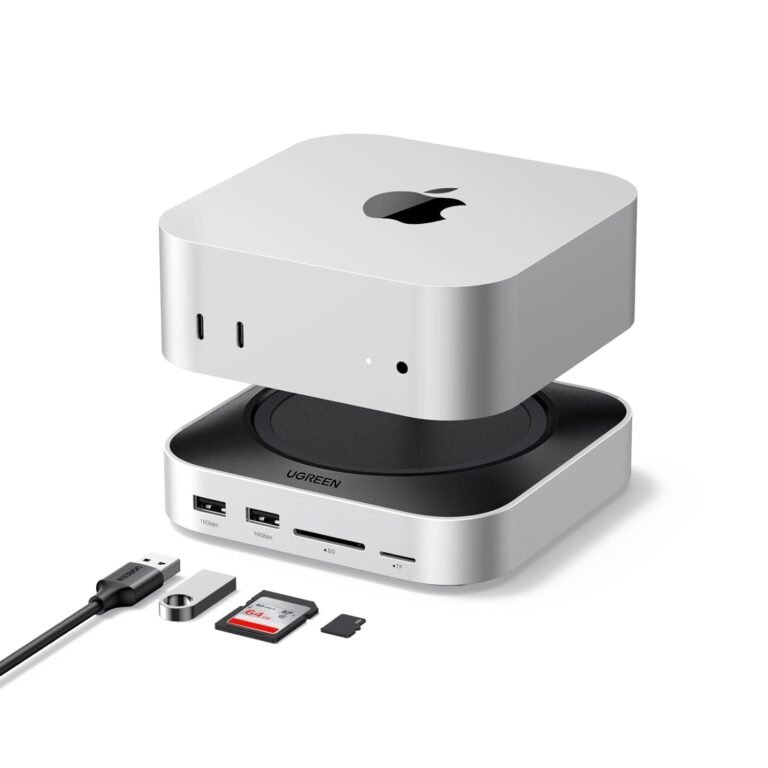
A Type C dock (also called a USB-C docking station) connects to your laptop using one USB-C cable and expands it into multiple ports.
When we say it includes:
- 4K HDMI – it can connect to a 4K external monitor.
- MagSafe charger – it wirelessly charges compatible iPhones.
MagSafe is Apple’s magnetic charging system introduced with the iPhone 12 and newer models. The magnets help the phone align perfectly for efficient wireless charging.
You can learn more about USB-C standards on Wikipedia and how MagSafe works on Wikipedia.
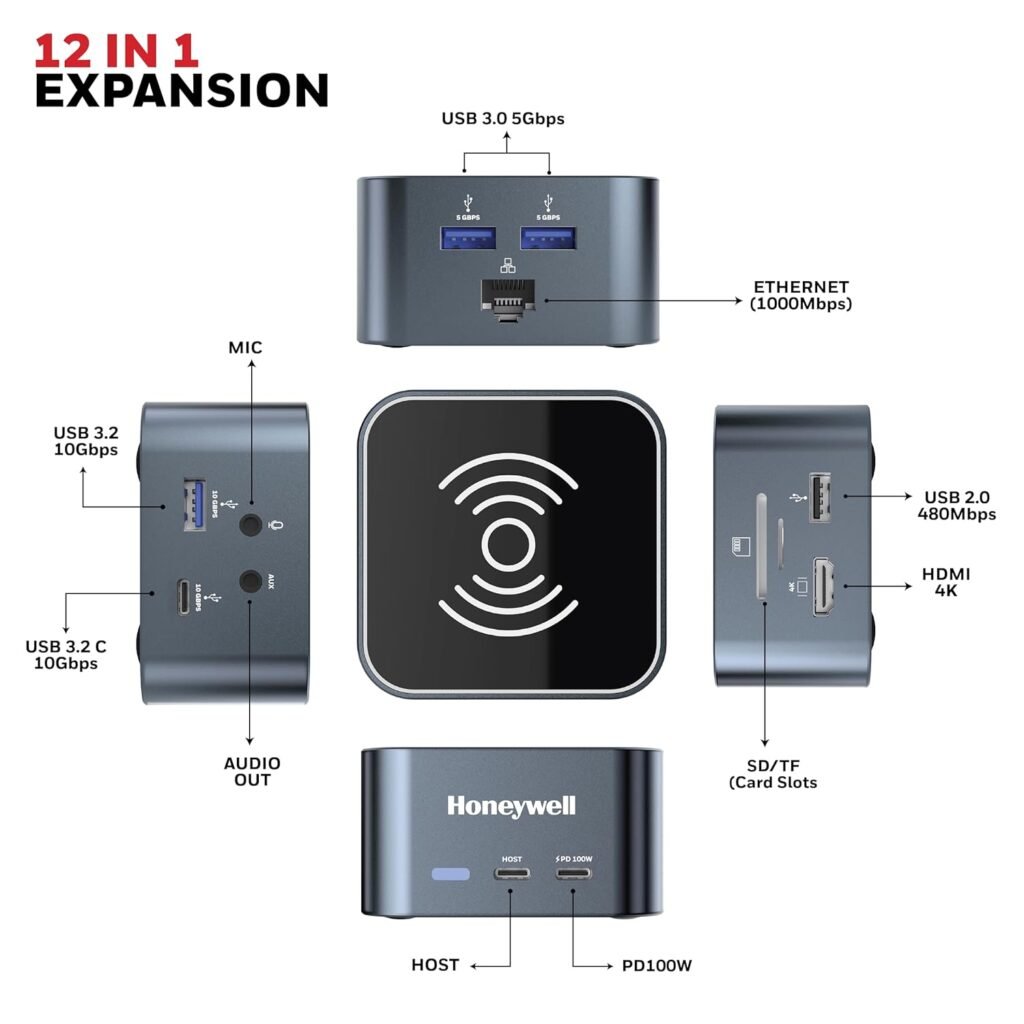
Why I Needed the Best Type C Dock with 4K HDMI and MagSafe Charger
Do you:
- Work from home?
- Use an external monitor?
- Charge your iPhone at your desk?
- Switch between office and home setup?
If yes this kind of dock can change your daily routine.
1. One Cable to My Laptop
Instead of plugging in multiple wires, I connect just one USB-C cable.
Instantly:
My keyboard and mouse connect
My monitor turns on
My laptop starts charging
2. Clean Desk Setup
The built-in MagSafe charger means no extra charging pad on my desk.
My phone snaps magnetically into place and starts charging immediately.
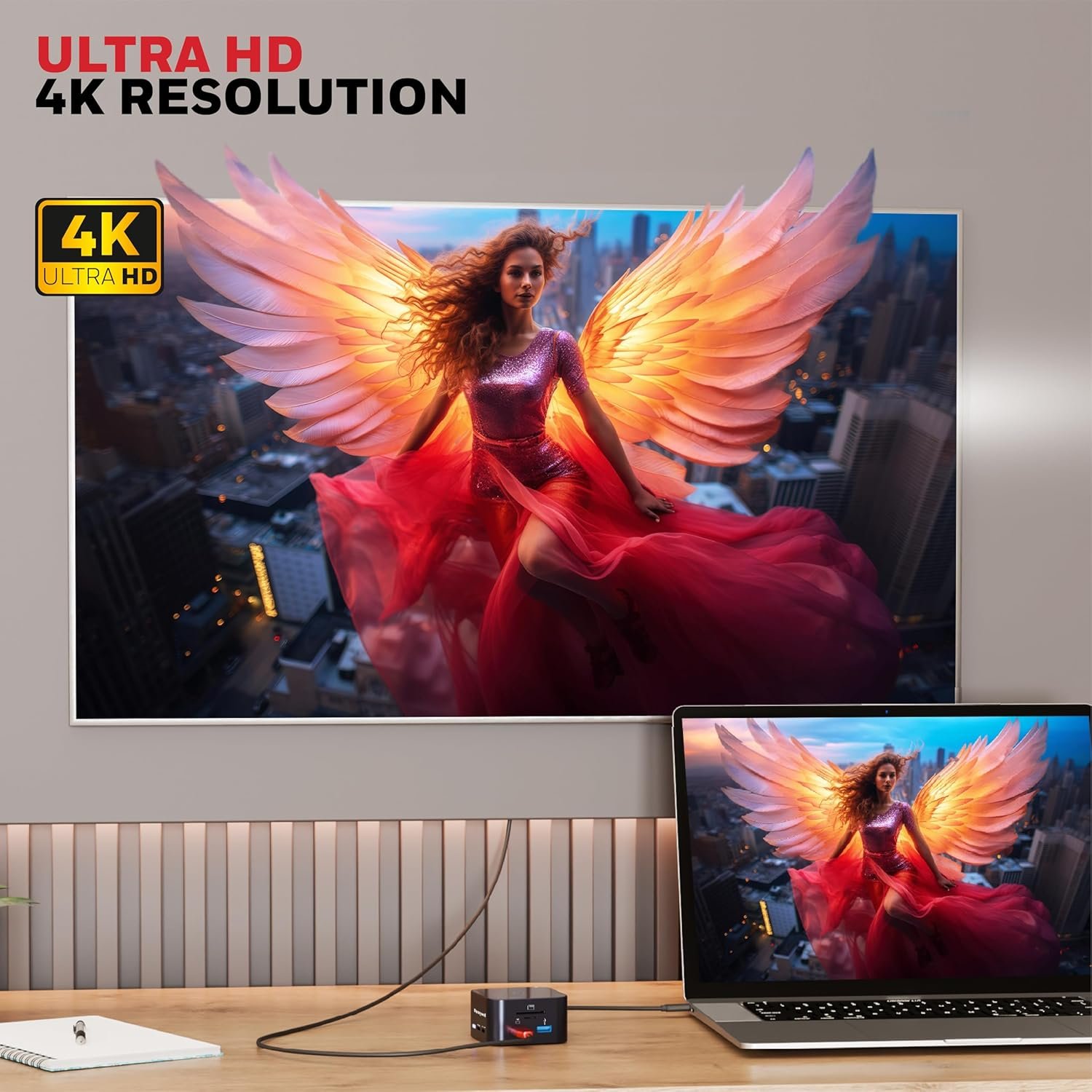
3. True 4K Display
When I upgraded to a 4K monitor, I wanted full resolution at 60Hz. A good dock supports this smoothly.
For reference, 4K resolution is 3840 × 2160 pixels, which you can read about on Wikipedia.
How to Choose the Best Type C Dock with 4K HDMI and MagSafe Charger
This is where most beginners get confused.
Not every dock that says “4K” actually performs well. And not every wireless charger supports full MagSafe speed.
Here is what I personally check before buying.
1. 4K HDMI Output – What Should You Look For?
When buying, check:
- Does it support 4K at 60Hz?
- Is it HDMI 2.0 or higher?
- Does your laptop support DisplayPort Alt Mode?
60Hz gives smoother scrolling and better video playback.
If a dock only supports 4K at 30Hz, it may feel slightly laggy during everyday use.
2. MagSafe Charging Speed
Some docks advertise wireless charging, but not all support full 15W MagSafe charging.
Check:
- 7.5W (standard wireless)
- 15W (official MagSafe fast charging)
If you own an iPhone 12 or later, 15W is ideal. MagSafe technology was developed by Apple Inc., and certified products usually perform more reliably
3. Power Delivery (PD) Wattage
This is extremely important.
Ask yourself:
- How much power does my laptop need?
Typical requirements:
- Ultra books: 45W–65W
- MacBook Pro: 85W–100W
- High-performance laptops: 100W
If the dock supports only 60W but your laptop needs 90W, it may charge slowly. USB Power Delivery standards are explained in detail on Wikipedia.
4. Extra Ports You Might Need
The best docking station should include:
Audio jack
USB-A ports
USB-C data port
Ethernet (RJ45)
SD / microSD card slot
Who Should Buy This Type of Dock?
Remote Workers
If you use:
- Zoom calls
- External monitor
- Laptop daily
This dock keeps everything simple.
Students
Easy to move between home and campus. Just unplug one cable.
Creators and Designers
4K output helps with photo and video editing.
Apple Ecosystem Users
If you use:
- MacBook
- iPhone
- iPad
This setup feels seamless.
How to Set Up Your Dock
Here is how I set mine up.
Connect Power Adapter
Plug the dock into its power source.
Connect HDMI to Monitor
Attach HDMI cable to your 4K monitor.
Connect USB-C to Laptop
Your laptop should:
- Detect display
- Begin charging
- Activate connected devices
Place iPhone on MagSafe Area
It should snap into place magnetically.
Done.
Common Problems and Simple Fixes
Problem 1: No 4K Display
Check:
- HDMI cable quality
- Monitor settings
- Laptop resolution settings
Problem 2: Wireless Charging Not Working
Make sure:
- Your phone supports MagSafe
- You’re not using a thick case
- The dock is receiving enough power
Problem 3: Laptop Charging Slowly
This usually means insufficient PD wattage.
Benefits Over Traditional Docking Stations
Older docks:
- No wireless charging
- More cables
- Separate phone charger required
Modern all-in-one docks:
- Reduce clutter
- Improve workflow
- Make desk setup look cleaner
What Price Range Should You Expect?
Here is a rough guide:
- Budget: $50–$80
- Mid-range: $80–$150
- Premium: $150+
I personally recommend mid-range or premium for reliability and safety.
Cheap models may:
- Overheat
- Drop display signal
- Charge inconsistently
Safety and Certifications
Look for:
- CE certification
- FCC certification
- Overcurrent protection
- Overvoltage protection
- Temperature control
Safety matters, especially when charging expensive devices.
How This Dock Improves Productivity
When I upgraded my desk setup, I noticed:
- Faster setup every morning
- Less cable frustration
- Cleaner workspace
- More focus
A small hardware upgrade can make daily work smoother.
1. Can I use the best Type C dock with 4K HDMI and MagSafe charger on a Windows laptop?
Yes as long as your USB-C port supports video output and Power Delivery.
2. Does MagSafe charging reduce battery life?
No It is designed to safely charge compatible iPhones without harming battery health.
3. Can I connect two monitors with this dock?
Some advanced docks support dual monitors. Always check specifications.
4. Is 4K necessary for office work?
It is not required, but it makes text sharper and multitasking easier.
Finding the best Type C dock with 4K HDMI and MagSafe charger is about understanding your needs.
Ask yourself:
- What devices do I use daily?
- How much power does my laptop need?
- Do I want a cleaner desk setup?
- Do I value convenience?
If the answer is yes, this dock is a smart investment.