Webcam for Meetings and Streaming for Zoom Calls
If you’re searching for the best webcam for meetings and streaming for Zoom calls, you’re probably asking the same questions I once asked:
- What kind of webcam do I really need?
- Is my laptop camera good enough?
- How do I look professional on Zoom?
- What settings should I change for better video?
Iive worked from home attended client meetings, conducted webinars, and even streamed content online. Over time, I learned that the right webcam makes a huge difference not just in how others see you, but in how confident you feel.
In this complete guide, I’ll walk you step by step through everything you need to know. I’ll keep it simple, practical, and easy to follow like I’m explaining it to a friend.
Let is get started.
Why Your Webcam Matters More Than You Think
When we join a meeting on Zoom, people see our face before they hear our ideas.
A blurry, dark, or shaky image can:
- Make you look unprepared
- Reduce engagement
- Affect professional impression
- Distract viewers during streaming
On the other hand, a clear external camera:
- Builds trust
- Improves communication
- Makes streaming smoother
- Shows your face clearly even in low light
According to Wikipedia, nonverbal communication plays a major role in human interaction. That includes facial expressions and eye contact both of which depend on good video quality.
So yes, your webcam matters.
How to Choose the Best Webcam for Meetings and Streaming for Zoom Calls
This is the most important section. If you understand this part you Will never waste money on the wrong device.
Let me break it down clearly.
1. Resolution: What Do I Really Need?
When buying a webcam, you’ll see:
- 720p (HD)
- 1080p (Full HD)
- 4K (Ultra HD)
Here’s my honest advice:
- 720p – Okay for basic video calls
- 1080p – Perfect for Zoom meetings and streaming
- 4K – Best for professional content creators
For most people attending meetings or streaming occasionally, 1080p is more than enough.
2. Frame Rate (FPS)
FPS stands for Frames Per Second.
- 30 FPS – Smooth for meetings
- 60 FPS – Smoother for live streaming
If you stream on platforms like YouTube or Twitch, higher FPS gives a more professional look.
3. Autofocus and Light Correction
Have you ever noticed your video going blurry?
That’s poor autofocus.
Look for features like:
- Auto light correction
- HDR support
- Automatic focus adjustment
Lighting plays a big role in video quality. The basics of lighting are explained well on Wikipedia.
If your room lighting changes often, these features help a lot.
4. Field of View (FOV)
Field of View means how wide the camera sees.
- 60°–78° – Best for one person
- 90° – Good for group meetings
If you attend meetings alone, a 78° FOV works perfectly.
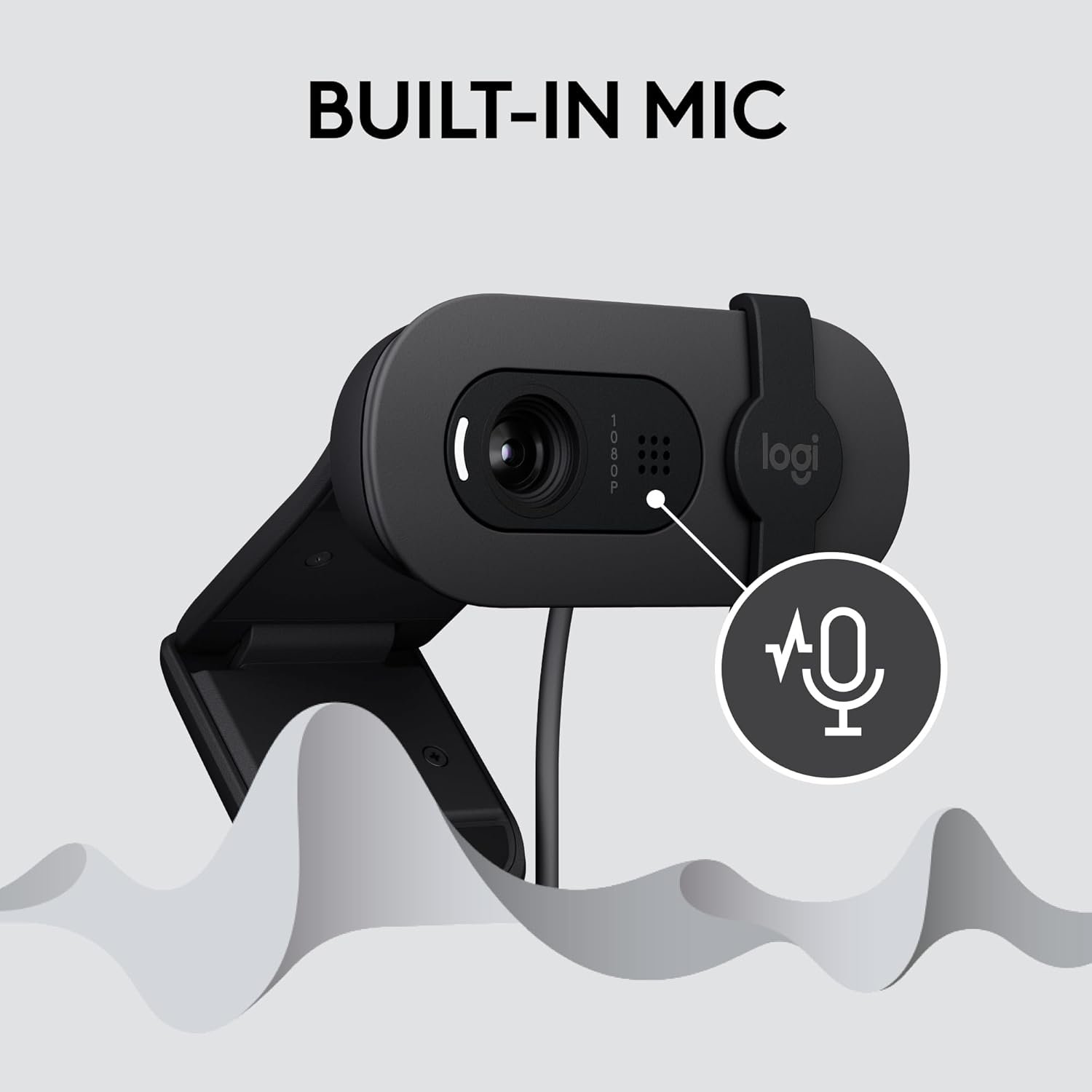
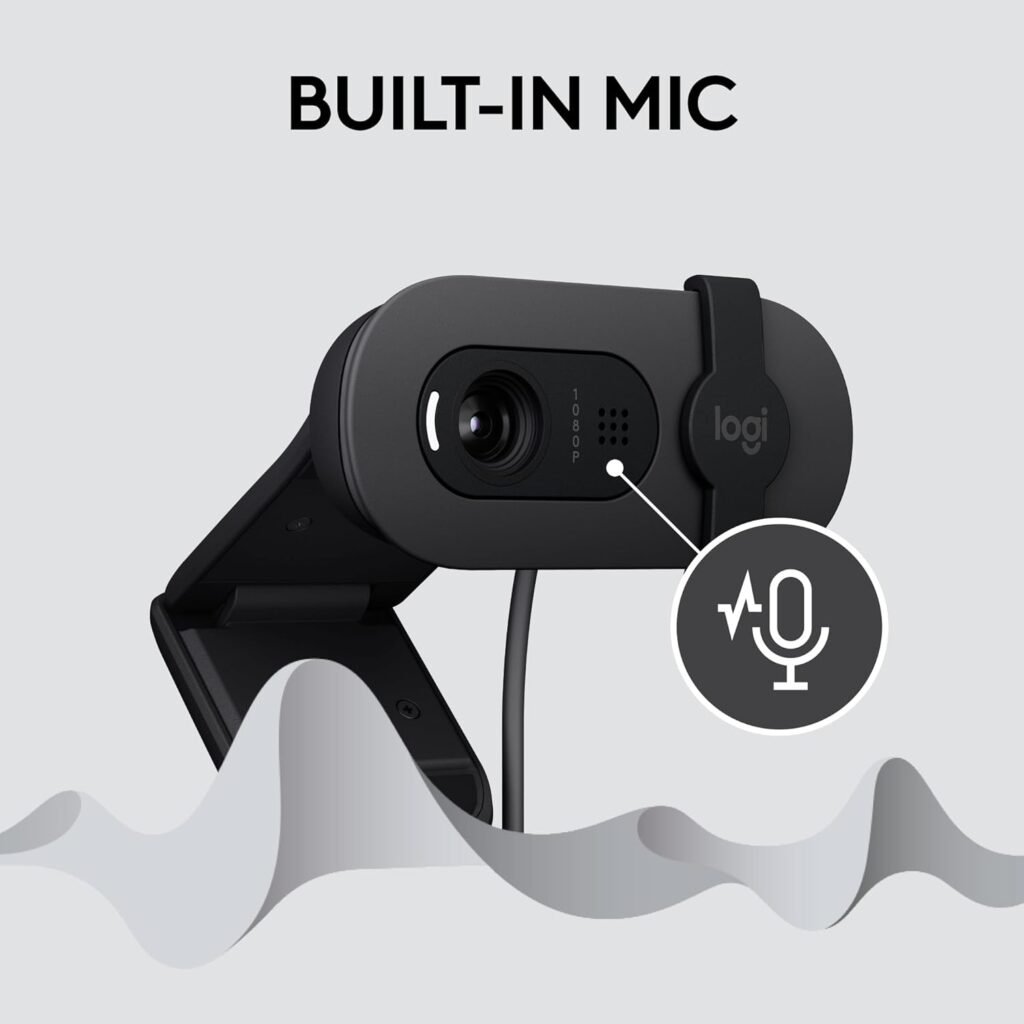
5. Built-in Microphone Quality
Most webcams have built-in microphones.
But let me tell you something important:
Audio is more important than video.
If your audio is unclear, people will struggle to understand you even if your video looks amazing.
For better audio:
- Use an external USB microphone
- Or use a headset
You can also adjust audio settings inside Zoom.
Built-In Laptop Camera vs External Webcam
Many people ask me:
“Do I really need an external webcam?”
Here’s my experience.
Built-in Camera
Pros:
- Already installed
- No extra cost
Cons:
- Poor low-light quality
- Fixed angle
- Often 720p only
External Webcam
Pros:
- Better resolution
- Adjustable positioning
- Improved color and clarity
- Better microphones
Cons:
- Extra cost
If you attend professional meetings regularly, an external webcam is worth it.
Step 1: Connect the Webcam
Most webcams are plug and play.
- Plug into USB port
- Wait for automatic detection
Modern operating systems like Windows 11 and macOS support automatic driver installation.
Step 2: Adjust Zoom Settings
Open Zoom:
- Click Settings
- Go to Video
- Select your external webcam
- Enable HD
You can also adjust:
Adjust for low light
Touch up appearance
Step 3: Position the Webcam Correctly
Here’s what works best for me:
- Camera at eye level
- 1–2 feet away
- Light source in front of me
- Clean background
Avoid:
Dark rooms
Sitting with bright window behind you
Looking down at laptop camera
Best Lighting Setup for Meetings and Streaming
You don’t need expensive equipment.
Simple lighting tips:
- Sit facing a window
- Use a basic ring light
- Avoid overhead-only lighting
- Use soft white light
If you want to understand light positioning scientifically, the National Institute of Standards and Technology explains light measurement basics on their site.
Good lighting improves even average webcams.
Internet Speed Requirements
Video quality also depends on internet speed.
For HD Zoom meetings:
- Minimum 3 Mbps upload
- Stable connection
You can test your speed on Speedtest.net.
If your video freezes, internet may be the problem — not your webcam.
Common Mistakes Beginners Make
I made these mistakes too.
Sitting too close to the camera
Using dim lighting
Forgetting to clean the lens
Ignoring audio quality
Not checking settings before meeting
Before every meeting, I quickly:
- Check camera preview
- Check microphone levels
- Close unnecessary apps
It takes 2 minutes and saves embarrassment.
Best Use Cases
A good webcam is useful for:
- Work-from-home meetings
- Online interviews
- Virtual classes
- Webinars
- Live streaming
- Content creation
Even students benefit during online exams and presentations.
How Long Does a Webcam Last?
A quality webcam lasts:
- 3–5 years easily
- Longer if maintained well
To increase lifespan:
Avoid dropping
Unplug safely
Store properly
Clean lens gently
Do You Need Special Software for Streaming?
If you’re streaming professionally, you may use:
- OBS Studio
OBS allows:
- Scene transitions
- Overlays
- Screen sharing
- Advanced settings
For basic meetings, Zoom alone is enough.
1. Is 1080p webcam enough for Zoom meetings?
Yes. 1080p is perfect for most meetings and streaming needs.
2. Why does my webcam look blurry on Zoom?
Possible reasons:
Wrong resolution setting
Low light
Slow internet
Autofocus issues
3. Can I use a webcam for both meetings and YouTube streaming?
Yes. Most external webcams work with Zoom and YouTube easily.
4. Do I need a separate microphone?
Not mandatory, but recommended if you want clearer professional audio.