How to Clean Laptop Screen with Cleaning Set
If you are wondering how to clean laptop screen with cleaning set, you’re not alone. I had the same question when I noticed fingerprints, dust, and oily marks covering my laptop display. At first, I thought wiping it with a tissue would work — but that can actually damage the screen.
So how do we clean a laptop screen properly?
What tools should we use?
When should we clean it?
And why is it important to use a dedicated cleaning set instead of household products?
In this detailed guide, I’ll walk you step-by-step through everything you need to know in simple English.
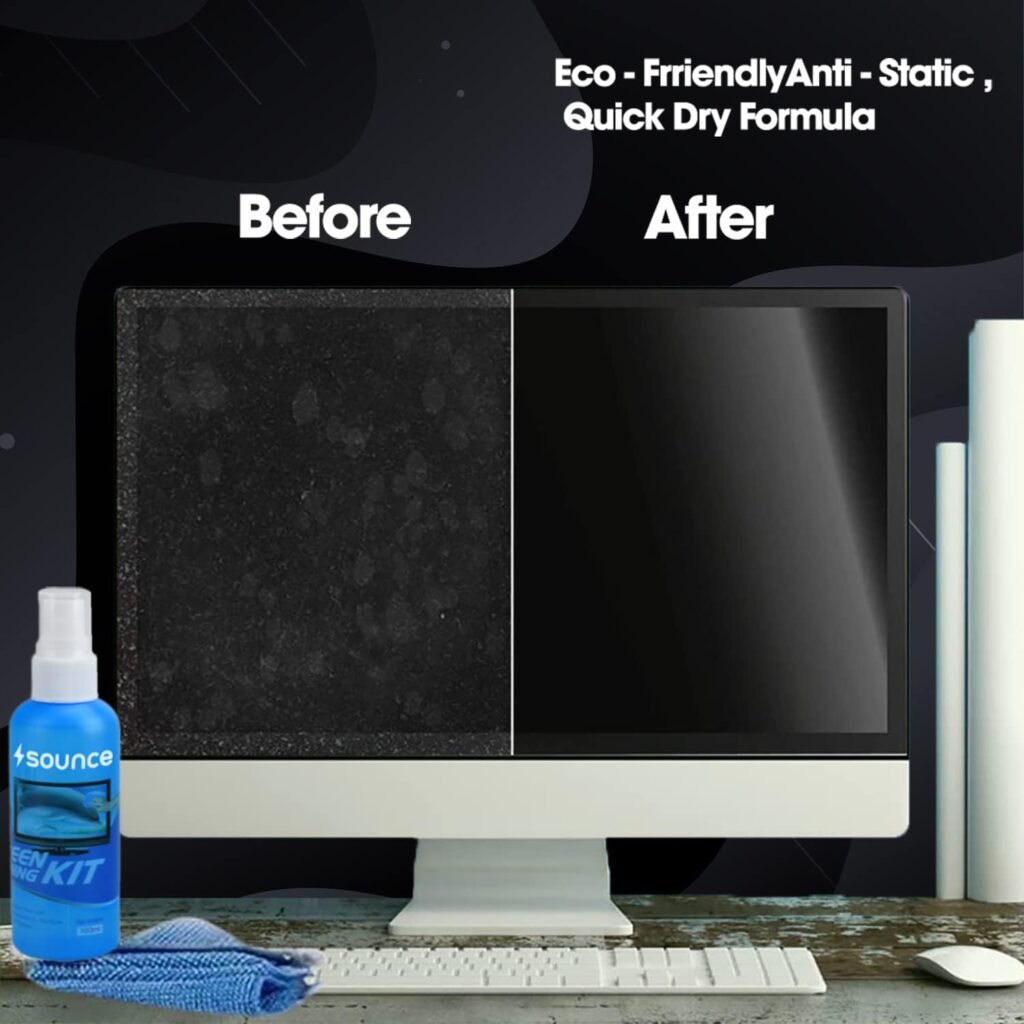
Why Laptop Screens Need Special Care
Modern laptops are not made of simple glass. Most displays today use technologies like:
- LCD (Liquid Crystal Display)
- LED-backlit LCD
- IPS panels
- OLED panels
You can learn more about LCD technology on Wikipedia.
Laptop brands such as HP, Dell, Lenovo, and Apple use delicate coatings like:
- Anti-glare coating
- Matte finish
- Anti-reflective layer
- Oleophobic (oil-resistant) layer
If we clean these screens incorrectly, we may:
- Remove protective coating
- Create tiny scratches
- Cause permanent streaks
- Damage pixels
That is why using a proper cleaning set is important.
What Is a Laptop Screen Cleaning Set?
Before I explain how to clean laptop screen with cleaning set, let’s understand what’s inside the kit.
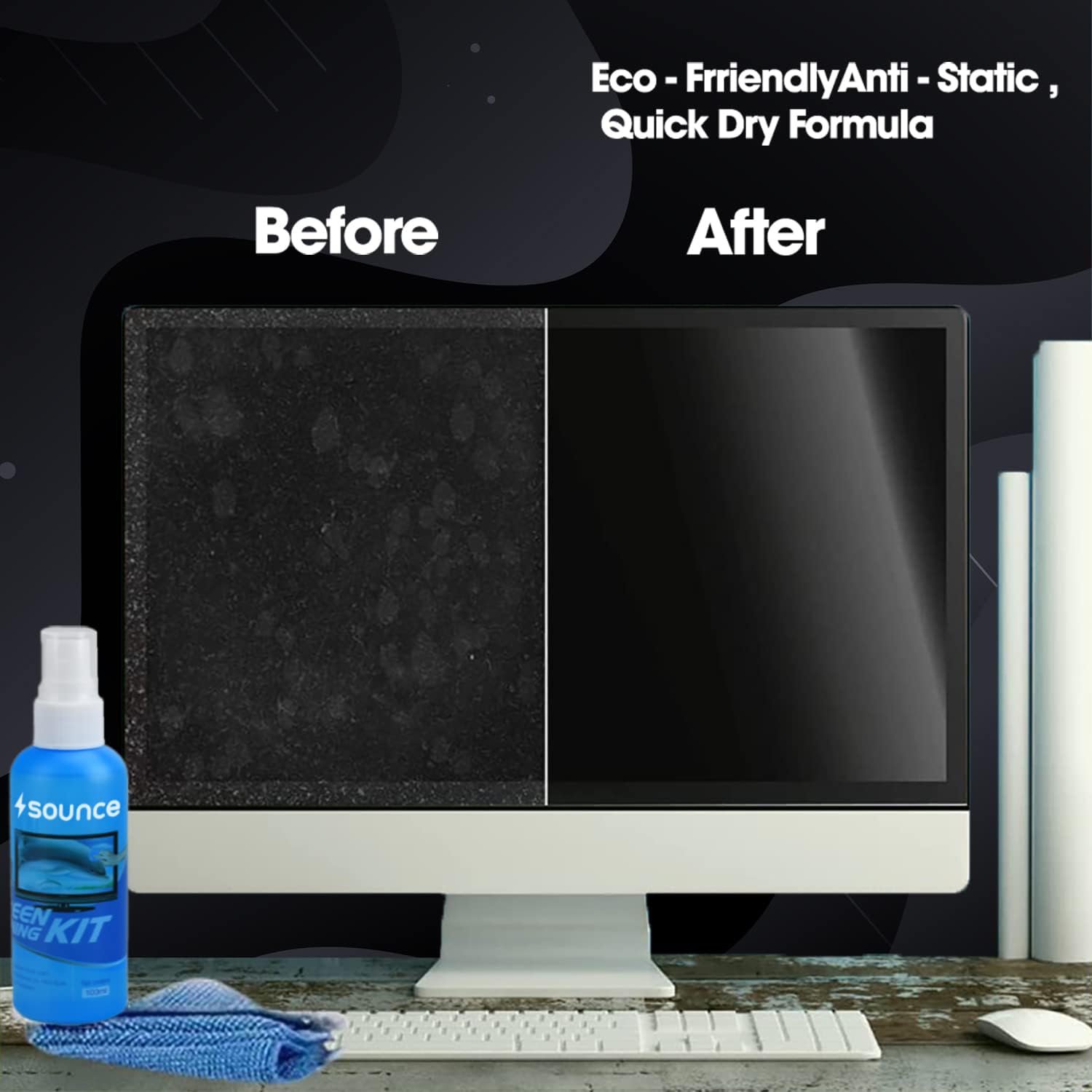
A typical laptop screen cleaning set includes:
- Screen-safe cleaning solution
- Microfiber cloth
- Soft dust brush or air blower
- Optional anti-static spray
This kit is specially designed for electronics — not for windows or mirrors.
How to Clean Laptop Screen with Cleaning Set
Now let is get into the practical part. I’ll explain exactly how I clean my laptop safely.
Turn Off and Unplug the Laptop
Why?
- It prevents electrical risk
- Makes dust and smudges easier to see
- Reduces streak formation
Always let the screen cool down before cleaning.
Remove Loose Dust First
This step is very important.
Use:
- A soft brush
- Air blower
Never wipe dust directly. Dust particles can scratch the screen.
Wipe Gently in Circular Motions
Use light pressure.
Move in:
- Small circular motions
or - Horizontal strokes
Never press hard. Laptop screens are thin and sensitive.
Let It Air Dry
Wait 30 to 60 seconds before turning the laptop back on. Avoid using a dry cloth immediately after wiping it may create streaks
Why You Should Not Use Household Cleaners
Many people ask:
“Can I use glass cleaner?”
“Is water enough?”
“Can I use alcohol wipes?”
Let is clarify.
Glass Cleaner Is Not Safe
Most glass cleaners contain ammonia.
According to general chemical safety guidance from Centers for Disease Control and Prevention, strong cleaning chemicals should be handled carefully and are not suitable for delicate electronics.
Ammonia can:
Leave permanent streaks
Damage anti-glare coating
Cause discoloration
What About Alcohol?
High-concentration alcohol may strip protective layers.
Some screen-safe solutions contain small controlled amounts but only if labeled safe for electronics.
Is Water Safe?
Distilled water is safer than tap water.
Tap water contains minerals that can leave residue.
Still, a dedicated screen cleaning solution is better.
How Often Should You Clean Your Laptop Screen?
This depends on your usage.
If You Use Laptop Daily for Work
Clean every 1 to 2 weeks
If You Travel Frequently
Clean weekly
If It Stays at Home
- Once a month
Regular cleaning prevents buildup of oil and dust.
Benefits of Cleaning Your Laptop Screen Properly
When I started cleaning my laptop properly, I noticed:
- Clearer display
- Better brightness
- Less glare
- Reduced eye strain
- Improved overall experience
A clean screen also looks more professional during video calls.
Common Mistakes to Avoid
Let is quickly review what not to do.
Using tissue paper
Using rough cloth
Spraying directly on screen
Cleaning while laptop is hot
Pressing too hard
Using strong chemical cleaners
Avoiding these mistakes protects your laptop.
How to Maintain a Clean Laptop Screen Longer
Here are some simple habits I follow:
- Wash hands before using laptop
- Avoid touching the screen
- Close the lid when not in use
- Keep laptop away from food
- Store it in a clean bag
Small habits make a big difference.
Hygiene and Device Cleaning
Our laptops collect germs because we touch them frequently.
The World Health Organization emphasizes maintaining clean surfaces for better hygiene.
However, disinfecting and cleaning are different. Always use screen-safe products for display areas.
Choosing the Right Cleaning Set
When buying a cleaning set, look for:
Alcohol-free formula
Anti-static properties
High-quality microfiber cloth
Good customer reviews
Compatibility with LCD/LED/OLED screens
You can find reliable kits on platforms like:
- Amazon
- Flipkart
Always read product descriptions carefully.
1. What is the safest way to clean a laptop screen?
Turn it off, remove dust with a soft brush, and wipe gently using a microfiber cloth with screen-safe solution.
2. Can I use alcohol wipes on my laptop screen?
High-concentration alcohol may damage coatings. It’s safer to use a cleaning set designed for electronics.
3. How often should I clean my laptop display?
Every 1–2 weeks depending on usage and dust exposure.
4. Why does my laptop screen show streaks after cleaning?
This usually happens if too much liquid is used or if you wipe with a dry cloth too quickly.
Learning how to clean laptop screen with cleaning set properly is simple — once you know the right method.
Your laptop is an investment. Taking care of the screen:
- Protects display quality
- Maintains brightness
- Extends lifespan
- Improves visual comfort
Cleaning correctly takes only a few minutes but makes a big difference.